Bitmap Brothers' Z gets a Claude-written static recompilation in Rust
z-rust v0.5-beta statically translates both the DOS and Windows 95 binaries of the RTS Z into Rust on an SDL3 runtime for Windows and Linux.
PC (Windows) → PC (Windows), Linux / Steam Deck · Recompilation
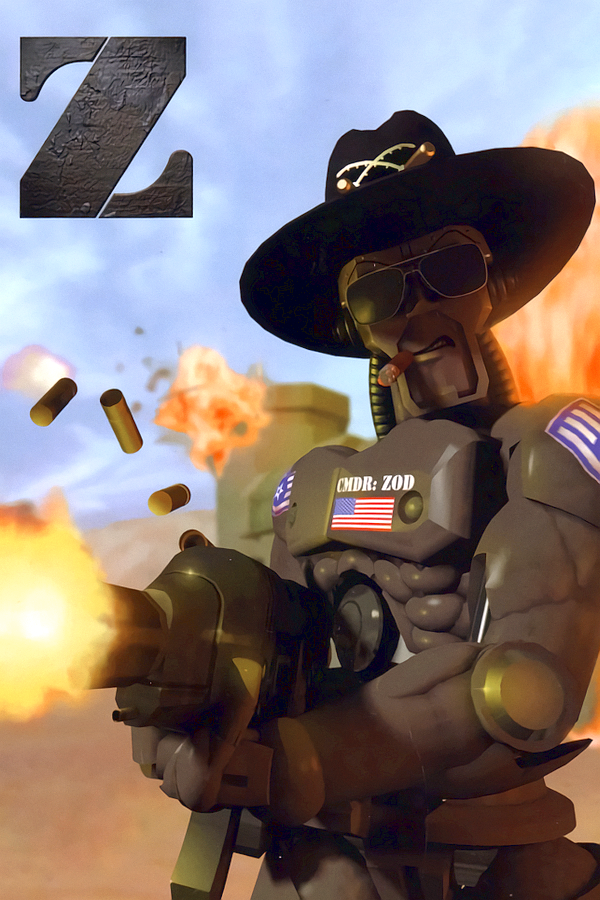
The real-time strategy game Z by the Bitmap Brothers now has a native Windows and Linux port via z-rust v0.5-beta, a static recompilation project built on an SDL3 runtime. The project statically translates both the Windows 95 (WINZ.EXE) and MS-DOS (ZED.EXE) executables directly into Rust.
According to the repository README, the codebase was written by Anthropic’s Claude AI and tested by a human. While static recompilation has gained traction on consoles like the N64 and Xbox 360, applying AI-assisted translation to dual x86 DOS and Win95 binaries brings that approach to classic PC games.
Because each original release behaves differently, z-rust ships with both translated targets and runs them according to their original specifications. The Windows 95 build draws its menu bars and dialogs in the Win95 style and locks missions to the original 18 frames per second, while the DOS path handles SVGA (640x400) and VGA modes, edge scrolling, and automatic sound and mouse configuration without manual driver setup.
The release is still an early prerelease beta. Intro and logo videos, menus, sound effects, MIDI music, and the first mission work on real hardware across both versions, while save loading and advancing to mission two on the Windows target are verified by automated tests.
How to try it
No game data is bundled. To run z-rust, you need original disc images (.iso, .bin, .img, .mdf, .cue, .ccd) or extracted files from either the 1998-03-02 Windows 95 release or the European English or German DOS release. The Steam release and other regional versions are unsupported because their executables differ and fail the launcher’s SHA-256 verification.
- Download the v0.5-beta build for Windows or the Linux
.AppImagefrom the project’s GitHub releases page. - Launch the program and select your game folder or drop a disc image onto the window, and the launcher unpacks disc images automatically into a local
gameorgame-zeddirectory. - Choose windowed or fullscreen mode (toggled in-game with
F11) and start the game, or pass--playvia the command line to bypass the launcher.